
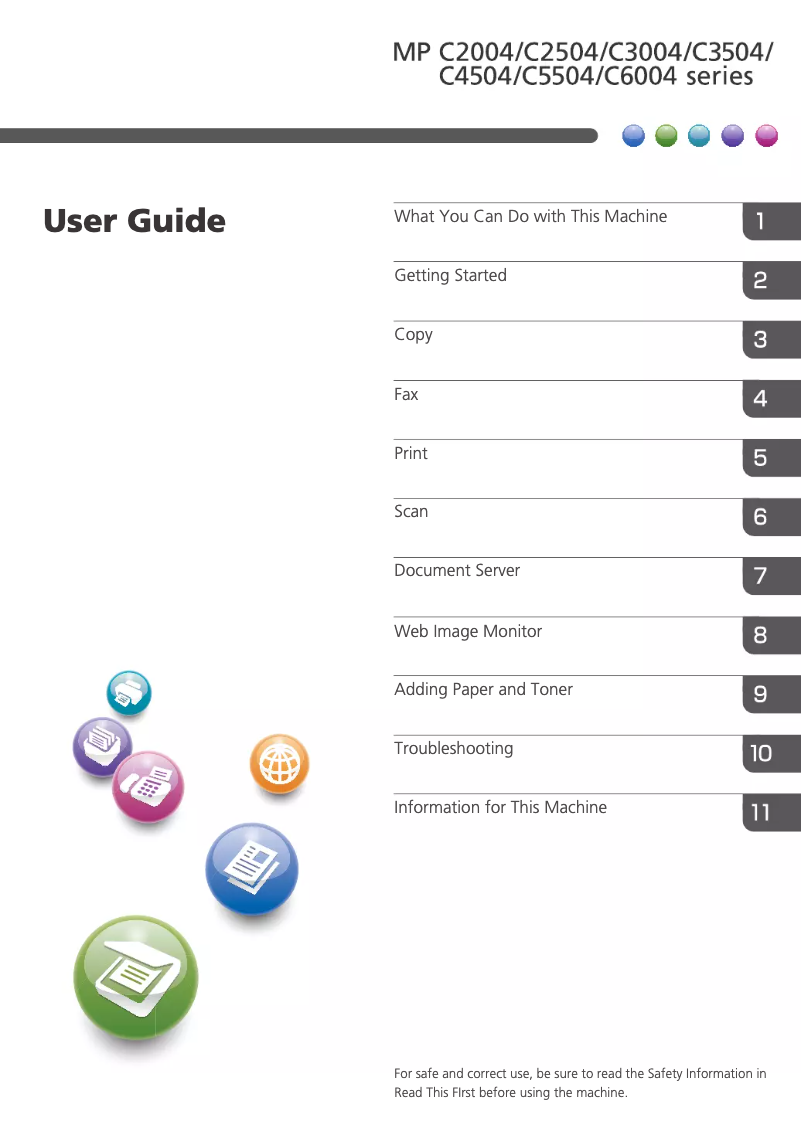
Manual of product MP C5504SP
Editorial note
The Ricoh MP C5504SP printer stands out for its exceptional print quality, offering vibrant colors and precise details, making it a preferred choice for professionals. Its versatility allows it to handle a wide range of paper formats and document types, making this device suitable for various printing needs, whether for reports, brochures, or presentations. Additionally, its energy-efficient design helps reduce operating costs while minimizing environmental impact. However, the acquisition cost of this printer can be a barrier for small businesses or users with a limited budget. Furthermore, its size and weight may complicate its installation and movement in tight spaces. While its advanced features are an asset, they may also require significant learning time, which can be a drawback for less experienced users. Finally, although designed to be energy-efficient, power consumption can be substantial due to its many features. Overall, the Ricoh MP C5504SP is a high-performing and versatile printer, ideal for those seeking superior print quality and advanced features, but it may not be suitable for all budgets or work environments.Score details
User experience
The user experience is enhanced by an intuitive interface and an accessible user manual, making it easier to set up and use the printer.
Performance
The print quality is exceptional, offering vibrant colors and precise details, making it an ideal choice for professional documents.
Features
The Ricoh MP C5504SP offers advanced document management features, allowing for efficient scanning, copying, and sharing of files.
Value for money
The acquisition cost is high, which can be a barrier for small businesses and budget-conscious users.
Robustness
The large size and weight of the printer can make installation and relocation difficult, especially in tight workspaces.
Battery life
Although designed to be energy-efficient, power consumption can be significant due to its many features.
Usability
The complexity of the advanced features may require a learning curve, which could be a drawback for less experienced users.
Advantages
High-quality prints
Supports various paper formats
Energy-efficient and cost-effective
Intuitive and easy-to-use interface
Advanced document management
Disadvantages
High acquisition cost for small businesses
Size and weight difficult to move
High long-term consumable costs
Complexity requiring a learning curve
Significant energy consumption to consider
Technical Specifications MP C5504SP
General Information
-
ModelMP C5504SP
-
Brand
-
Category
-
Type
-
SKU865588
-
MPN865588
Frequently Asked Questions
What is the recommended method for removing jammed paper from the printer?
Why is my printer refusing to accept original cartridges?
What are the possible reasons for poor print quality?
What are the main distinctions between a laser printer and an inkjet printer?
Why is my inkjet printer producing black streaks on my prints?
What does the acronym DPI mean?
How do I resolve the issue of missing shortcuts on the home screen for frequently used programs or web pages?
How do I diagnose if the machine is not functioning as indicated in the manual?
How do I troubleshoot issues when frequently used settings in the program are not working as expected?
Is the manual for the Ricoh MP C5504SP available in French?
Similar products


More product categories from brand Ricoh
More product types from brand Ricoh



Presentation of product MP C5504SP specifications from brand Ricoh
General Information
The model Ricoh MP C5504SP is a printer from the renowned brand Ricoh, known for its commitment to quality and innovation in the office equipment sector. This printer is designed to deliver exceptional performance and an optimized user experience, thus meeting the demands of professional environments.
Advantages
Among the main features of the Ricoh MP C5504SP, we find:
- Remarkable print quality: This printer produces high-quality prints with vibrant colors and precise details, ideal for professional documents.
- Versatility: Capable of handling various paper formats and types, it easily adapts to diverse printing needs, whether for reports, brochures, or presentations.
- Energy efficiency: Designed to be eco-friendly, it helps reduce operating costs while having a limited environmental impact.
- Ease of use: With an intuitive interface and an accessible user manual, setting up and using the printer is simplified, thus enhancing the user experience.
- Advanced document management: The MP C5504SP integrates advanced features for scanning, copying, and sharing files efficiently and smoothly.
Disadvantages
However, some aspects may be considered disadvantages:
- Acquisition cost: The purchase price of this printer can be relatively high, which may pose a challenge for small businesses or users on a limited budget.
- Size and weight: Its bulkiness can complicate installation and relocation, especially in tight workspaces.
- Consumable costs: Although the print quality is excellent, expenses related to toners and special papers can quickly add up.
- Complexity of features: Advanced options may require an adjustment period for less experienced users.
- Energy consumption: Due to its many features, the printer may consume a considerable amount of energy, which is a consideration for environmentally conscious users.


